DemoHost Pro
  • Home
  • Features
  • Pricing
  • Contact
  • Home
  • Store
    • Browse All
    • Cloud VPS Servers
    • Premium Web Hosting
    • Reseller Web Hosting
    • Managed Baremetal Servers
    • Register a New Domain
    • Transfer Domains to Us
  • Announcements
  • Knowledgebase
  • Network Status
  • Contact Us
  • More
  • Account
    • Login
    • Register
    • Forgot Password?
  • 0 Shopping Cart
    1. Portal Home
    2. Knowledgebase
    3. Databases
    4. How to Repair a Database via phpMyAdmin in cPanel

      Categories

    Backup/Restore
    4
    CloudLinux (cPanel)
    10
    cPanel - Control Panel
    24
    Databases
    11
    DirectAdmin
    48
    DNS - Nameservers
    6
    Domain Management
    10
    Email
    17
    FTP
    9
    Installing a Control Panel
    6
    Mail Filters & SPAM
    8
    Mobile
    11
    Others
    3
    PayPal
    7
    Plesk
    47
    Security
    10
    SiteWorx (Control Panel)
    58
    Softaculous
    69
    SolusVM
    18
    SSL
    5
    Virtualizor
    19
    WHM
    18
    WordPress
    17

      Categories

      Support

    My Support Tickets
    Announcements
    Knowledgebase
    Downloads
    Network Status
    Open Ticket

    How to Repair a Database via phpMyAdmin in cPanel Print

    • 0

    1. Log in to your cPanel account.

    2. In the Databases section, click on phpMyAdmin.


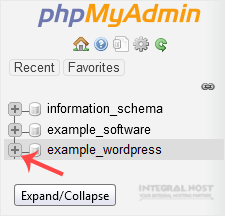
    3. Click the Expand icon from the navigation tree in the left sidebar.

    4. Scroll down and mark Check All. Then click on the drop-down arrow and select Repair table.
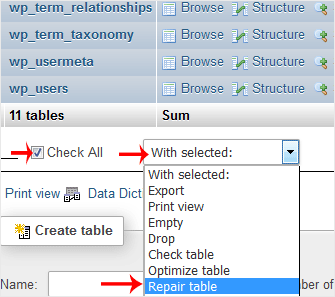

    If the table has been repaired successfully, it will show an OK message. Otherwise, it will display an error on some tables.


    Was this answer helpful?

    Related Articles

    How to Create a Database in cPanel 1. Log in to your cPanel account.2. In the Databases section, click on MySQL Databases. 3. In the... How to Rename a Database in cPanel 1. Log in to your cPanel account. 2. In the Databases section, click on MySQL Databases. 3.... How to Delete a Database in cPanel 1. Log in to your cPanel account. 2. In the Databases section, click on MySQL Databases. 3.... How to Add a User to a Database and Grant Privileges 1. Log in to your cPanel account. 2. In the Databases section, click on MySQL Databases. 3.... How to Import a Database via phpMyAdmin in cPanel 1. Log in to your cPanel account.2. In the Databases section, click on phpMyAdmin.3. From the...
    « Back

      Support

    My Support Tickets
    Announcements
    Knowledgebase
    Downloads
    Network Status
    Open Ticket

    Services

    Web Hosting VPS Hosting Dedicated Servers Reseller Hosting

    Support

    24/7 Support Knowledge Base Server Status Network Status

    Company

    About Us Terms of Service Privacy Policy Acceptable Use Policy

    © 2025 DemoHost Pro. All rights reserved.


    Loading...
    Loading...
    Choose language
    العربية
    Azerbaijani
    Català
    中文
    Hrvatski
    Čeština
    Dansk
    Nederlands
    English
    Estonian
    Persian
    Français
    Deutsch
    עברית
    Magyar
    Italiano
    Macedonian
    Norwegian
    Português
    Português
    Română
    Русский
    Español
    Svenska
    Türkçe
    Українська

    Choose Currency

    $ USD
    INR

    Generate Password

    Please enter a number between 8 and 64 for the password length